User profiles
A user profile is a user that can access the tenant and its apps. You manage user profiles on the User profiles tab of the Collaboration area.
Prerequisites
- The Collaboration area is open and Design mode is active ().
Create, edit, delete
- On the User profiles tab, enter Design mode.
- Click the red plus () to add a user, fill in the properties, and Save.
- To change or remove a user, click the edit button next to the name; the edit dialog has a trash icon to delete the user.
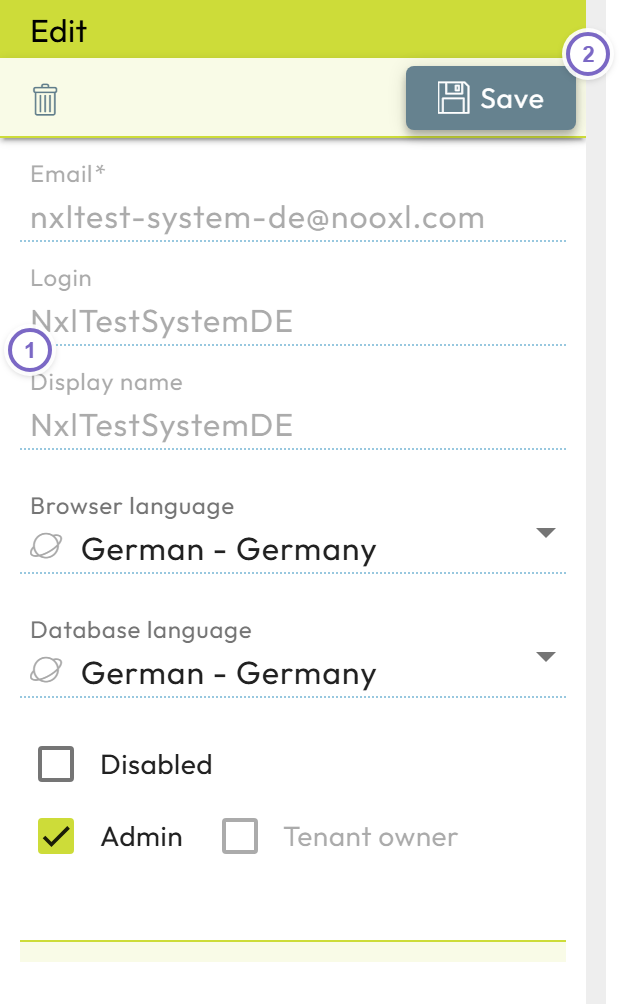
- 1 Enter the user properties.
- 2 Save.
Properties
| Field | Meaning |
|---|---|
| Name | The display name used throughout the system. |
| Used to authenticate the user and to send password resets. | |
| Browser language | Language of the Nooxl interface (German or English). Does not affect model content. |
| Database language | Controls number formats, date format, and time zone in models. |
| Disabled | Blocks access without deleting the user (useful while configuring rights, or to revoke access). |
| Admin | Marks the user as an administrator (see roles). |
| Tenant owner | Indicates the tenant owner; assigned automatically to the creator and not transferable. |
note
On-premise installations without an authentication provider also require a login to be created — that is a system administration task linked to this profile by email.