Workflow permissions
Static permissions stay the same until someone changes them. Workflow permissions instead grant different rights to different users or groups based on a workflow status — for example a planning value that is editable while a budget round is open, then read-only afterwards.
The mechanism behind them is the permissions section (workflow markup) inside a model. This page explains the concept and how rights are evaluated; the section page covers where it lives.
Authorization levels
| Level | Affects |
|---|---|
| Matrix | A specific model. |
| State | A specific dataset of a model (the model must use at least one selection). |
| Condition | Labels of a data label category — applied wherever those labels are used in dataset selections or as dimensions. The rights apply to the underlying category. |
Permissions
| Permission | Meaning |
|---|---|
| PriorityAccess | Whether the object/label can be seen (otherwise the View button never enables and labels are hidden). |
| PrioritySave | Whether data can be saved (also gates copy and recalculate). |
| PriorityDelete | Whether it can be deleted. |
| PriorityAssign | Whether it can be assigned to a user/group. |
| AssignText | A message carried through the workflow, shown in the dataset list. |
How rights are evaluated
A user or group has a permission when the value is >= 0. User- and group-level
values are summed: if a group has -1 for PriorityAccess but one member is given
+1, that member totals 0 and can see it while others cannot. When a dataset uses
several selections, the PrioritySave values of all involved labels are added — >= 0
means the user can save.
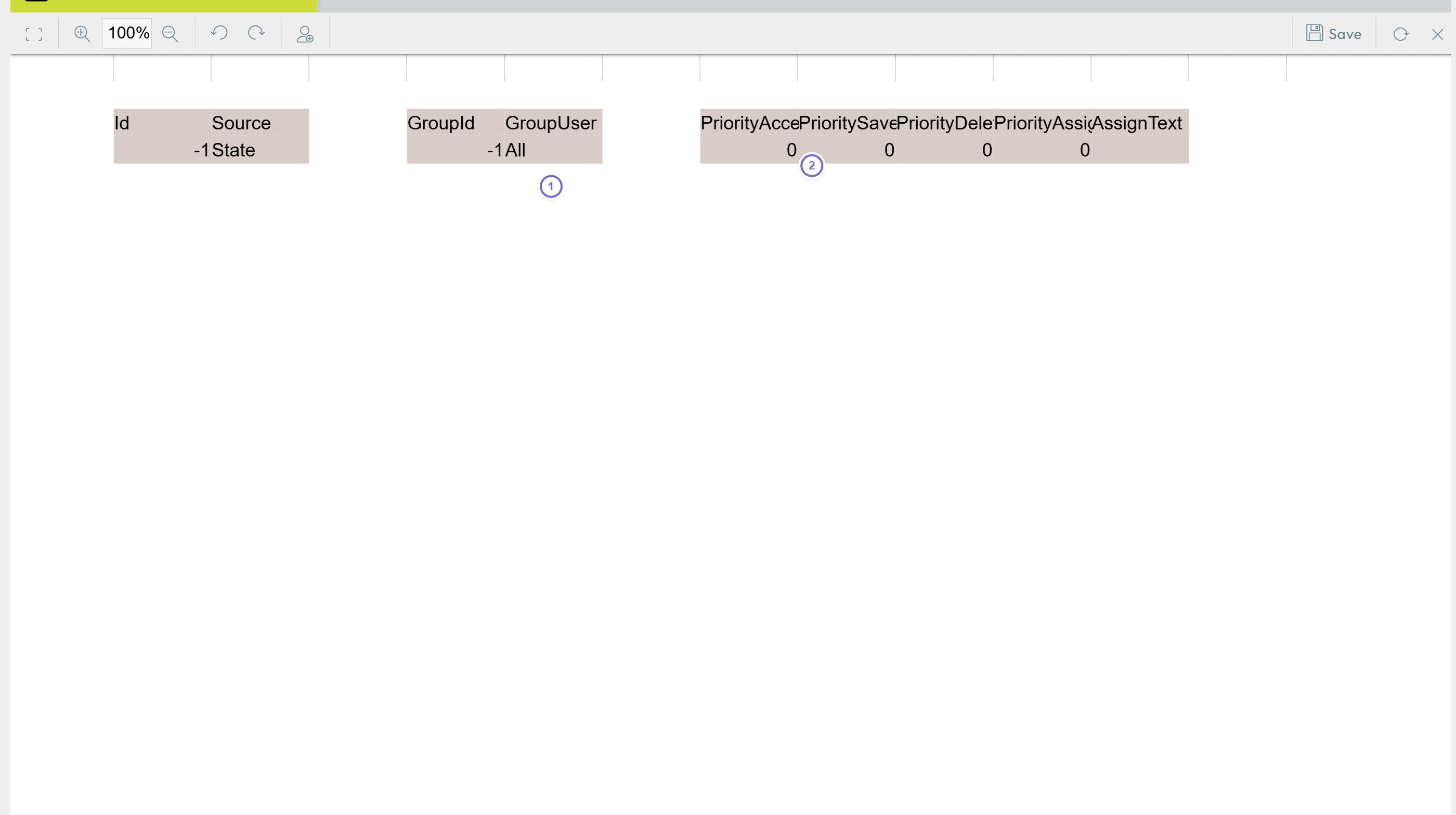
- 1 The group/user rows.
- 2 The priority columns;
>= 0grants the right.