Nooxl Transformer
The Nooxl Transformer turns an uploaded Excel file into a model automatically: it identifies the cells that should be stored in the database and creates the cell storage sections for you, instead of you doing it by hand.
When to use
Use the Transformer when creating a new model (or uploading a new version) and you want a quick, sensible starting point — especially for spreadsheets with obvious input cells.
Step by step
The Transformer is a three-step wizard: Upload, Analyze, Transform.
- In the header of the models panel, click the magic-wand icon to open the Nooxl Transformer.
- Upload: select the Excel file (.xlsx) — the analysis starts automatically.
- Analyze: review the result and its remarks; optionally adjust the recognition options and re-analyse.
- Click To transformation, adjust the model name, and start the transformation.
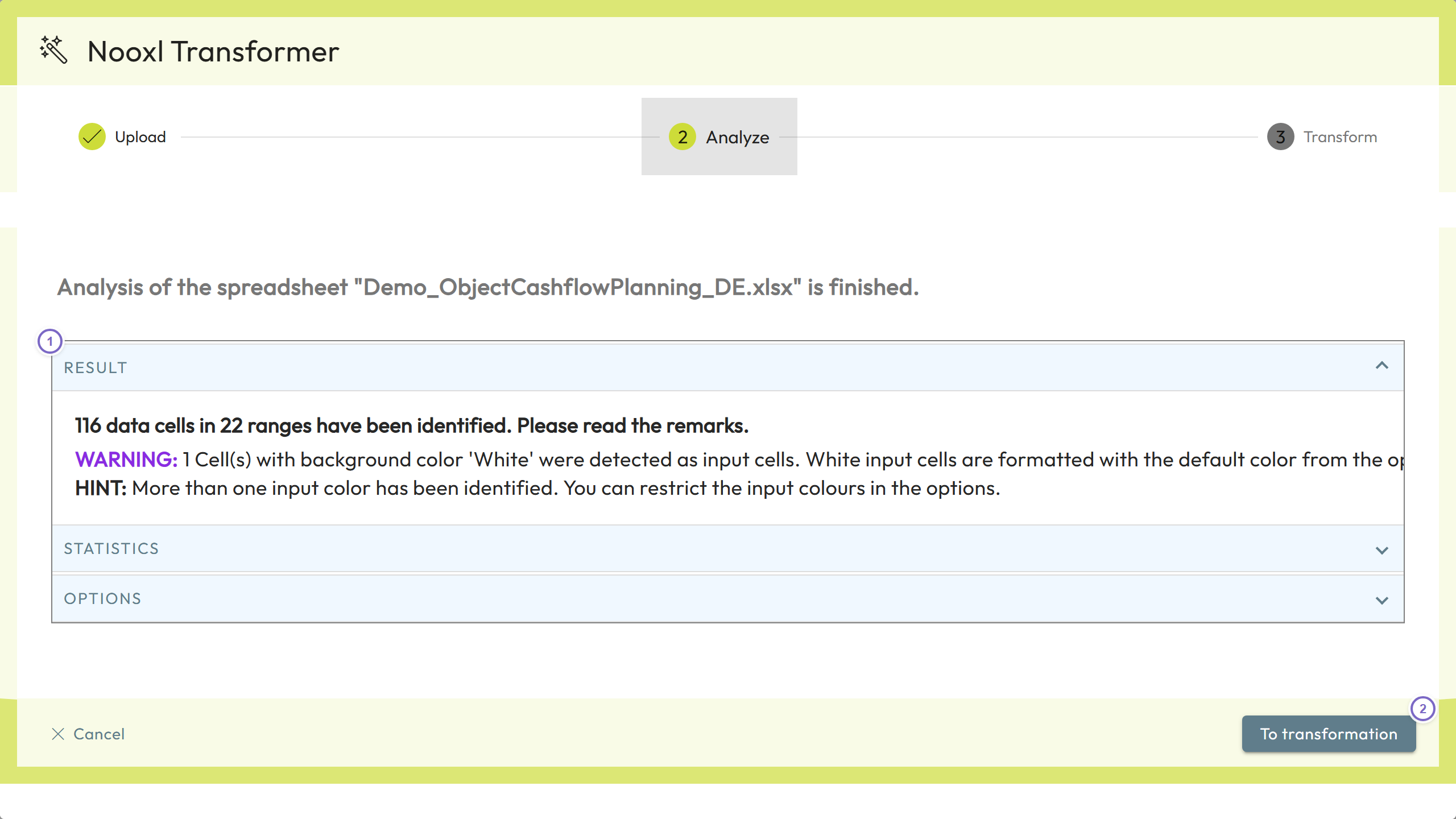
- 1 Review the analysis result and its remarks.
- 2 Continue with To transformation.
Depending on the file size, the analysis and transformation can take a while.
The result
The Transformer identifies the input cells, creates a cell storage for them, and creates a tab page named after the sheet. It also creates a default dataset selection.
After transformation
- Check the result. Nooxl recognizes a cell as input when its content is referenced elsewhere in the workbook. Cells that nothing references (for example a free comment cell) are not stored — add a cell storage section manually if you need them.
- Tighten the storage property. By default storages are
DATA_TEXT_NUMBER; change toDATA_TEXTorDATA_NUMBERwhere you know the content type, for better performance. - Adjust the selections. Replace or extend the default selection to match your model.