Cell Storage Explorer
The Cell Storage Explorer gives access to the data stored in all cell storage sections across the models of your app. Open it from the left navigation.
Find a cell storage
- Filter by model to see only its cell storages.
- Use the free-text search to narrow further.
Models with cell storages are listed first; expanding one shows its cell storages.
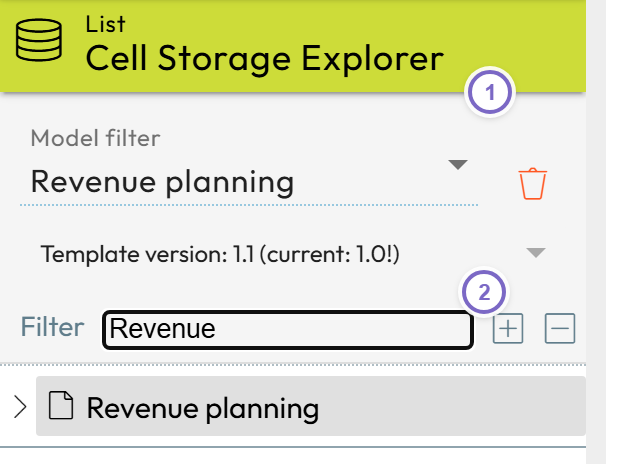
- 1 Filter by model.
- 2 Free-text search.
View data (pivot grid)
Open a cell storage's viewer to slice and dice its data like an Excel pivot: set up filters and rows/columns, read the data table, and see the result visualized as a column chart on top. You can export the table to Excel.
Edit data
Click a cell storage's name to enter edit mode. Select a dataset (or all datasets) and View. By default only the first 10,000 rows show — raise Maximum rows to see more. Each dimension becomes a filter; reload after changing filters, then edit the data in the grid.
The editor changes the raw stored data only:
- Data-quality checks (validations) you set up in models are not applied.
- Editing does not trigger a recalculation — values that depend on the edited data only change after you recalculate the datasets.