Cell action section
A cell action section adds extended program logic to cells — logic that goes beyond standard Excel formulas or automates time-consuming tasks. Because Nooxl Apps does not run VBA (for security), cell action sections take its place.
In older documentation and the API this is a function markup (MarkupFunction).
How it works
A cell action defines input and output ranges (other section anchors) and output formulas written in Excel syntax. When a trigger event fires (for example a cell click or value change), Nooxl evaluates the output formula and writes the result into the output range.
Properties
| Field | Meaning |
|---|---|
| Name | The function's name. |
| Cycle rank | Order when several functions are triggered together (equal ranks run alphabetically). |
| Disabled | Switch off the logic. |
| Debug | Show debug info boxes when the function is triggered. |
| Iterations / Max. count / Max. change | Run the formula repeatedly for circular references, with a count limit and a minimum change threshold. |
| Use function add-in | Use a Nooxl function add-in (give the add-in and function name). |
Input / output ranges
For each range you reference a section anchor and give it an alias (used in the output formula). Mark a range as an output range to compute its content with a formula. Options include Set next region (jump to a tab/region named by the output), and With input event (raise an input event that can trigger other functions).
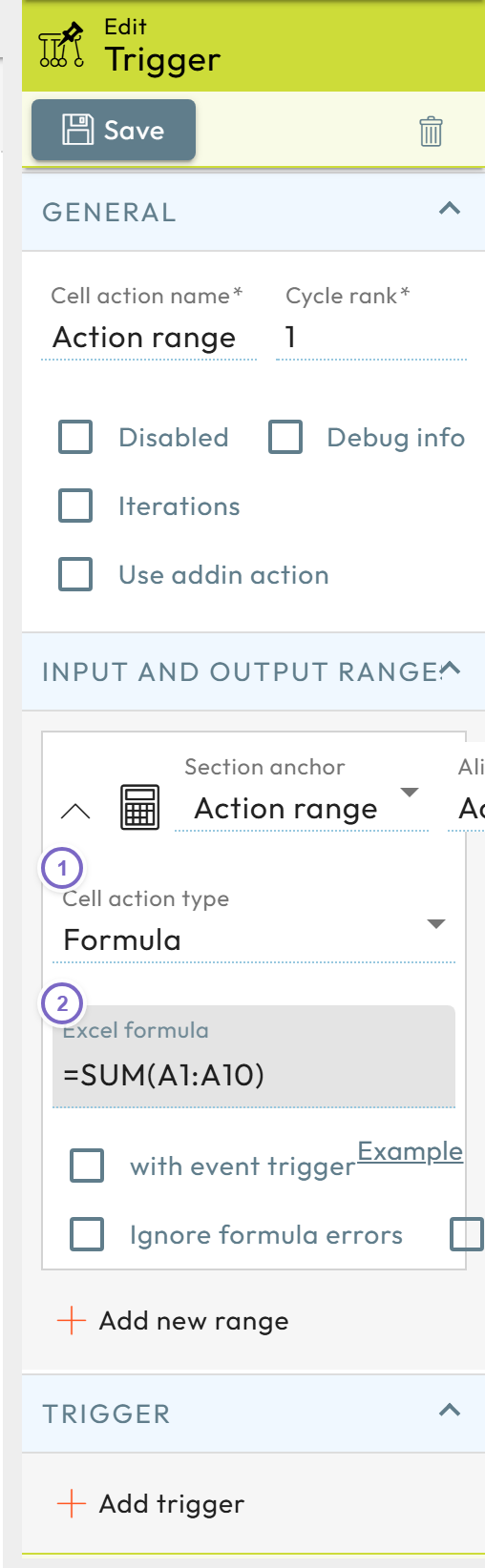
- 1 Set Cell action type to Formula (output formula result to cell).
- 2 Enter the Excel formula.
Output formulas
Output formulas use Excel logic, with a few differences:
- Use the English Excel function names.
- Formulas start without
=. - Use
,or;to separate statement blocks. - Activate Calculate all rows/columns to apply the formula to every cell of a multi-cell output range (otherwise only the top-left cell is computed).
- Prevent input resets user input, useful to preserve a formula while still letting users click the cell.
A cell with a Cell click trigger must contain something (at least a space) — a totally empty cell will not fire the click event.
Triggers
In Trigger events you pick the range (by alias) and the event type that fires the function (for example value changed, cell click, or file events). See also the automation section for scheduled/background processing.
Create data labels with a modification
A cell action can also create data labels from a model through a modification. This lets you own the creation process (enforce naming patterns, pull in names from other categories, store extra data, start a background job) and lets users create multiple labels at once — useful when importing labels from another system.