Dynamic collections (spreadsheet filter)
Regular data label collections are mostly static: all labels, a few, or one. Only All labels is somewhat dynamic. When you need a truly dynamic collection — one whose content is computed from data — use a spreadsheet filter.
A spreadsheet filter points the collection at a model that contains the logic to decide which labels are currently included.
When to use
A typical case: departments and employees, where the employee collection should depend on the selected department. You could model this with dependent labels, but spreadsheet filters are far more flexible:
- change dependencies easily
- support multiple dependencies
- no suffix appended to the label name
- an easy way to include all labels
Spreadsheet filters are also a clean way to hide outdated labels without deleting them, so the underlying data is preserved for auditing.
Step by step
1. Create the collection
- Open Data and labels → category → collections icon → plus.
- Select the category, name the collection, and set the selection type to All labels.
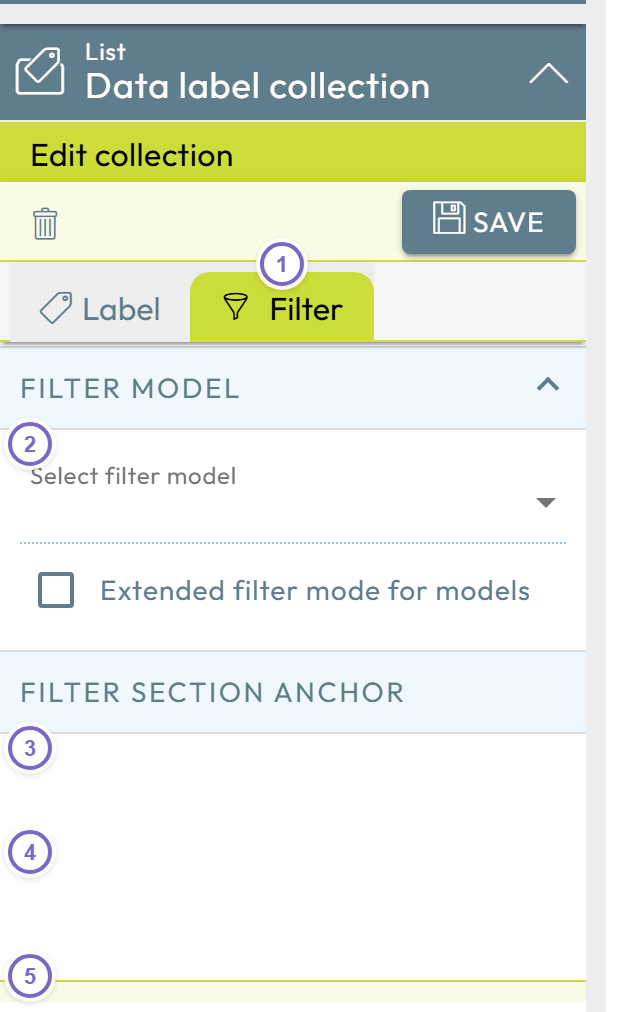
- Switch to the Filter tab and click Save for now — you will return after building the filter model.
2. Build the filter model
Create a model that produces the names, IDs, descriptions, or tags of the labels that should be in the collection. For the department/employee example:
- Add the Department category as a dataset selection so you can store which employees belong to which department.
- In Design mode, set up a cell storage section that lists the employees down a column (advanced mode, employees category as the down dimension with line expansion) and outputs their names in a neighboring column.
- Add a section anchor over a column that holds the filtered labels, using an Excel formula that returns the label only when the row is filled, for example:
=IF(C2<>"";B2;"")
Using label IDs instead of names in the filter section improves performance for larger categories.
3. Configure the filter properties
Return to the collection's Filter tab and configure it:
- 1 Enable Use spreadsheet filter.
- 2 Select the filter spreadsheet (the model you built).
- 3 Select the section anchor with filter data.
- 4 Specify what the section contains (label id, name, description, or tags).
- 5 Choose the compare method (for example equal), then Save.
| Filter data contain | Notes |
|---|---|
| Data label id | Most performant. |
| Data label name | The label names. |
| Data label description | Allows matching several labels (descriptions need not be unique). |
| Data label tags | Allows matching several labels (tags need not be unique). |
4. Use the collection in a model
Use the spreadsheet-filter collection as an option in a model's dataset selection. Its content is now driven by the filter model.
You must use at least all the selections of the filter model, but you may use more. Nooxl runs the filter model every time it is used, so you never have to refresh the filter data manually.