Revisions
A revision is the lifecycle state of a template version. It lets you change a model in a controlled way — work on a draft, then publish it when ready — without disturbing the version users currently work with.
Revision states
| State | Meaning |
|---|---|
| Checked out | A working copy was created from a published version and can be edited. |
| Draft | The checked-out copy has been checked in but is not yet published. |
| Review needed | A review has been requested and is waiting for a reviewer. |
| Review ongoing | A reviewer has started the review. |
| Review approved | The review has been finalized and approved — the version is ready to publish. |
| Review canceled | The review was rejected or canceled; the version is back with the designer. |
| Published | The version is live and used by users. |
| Unpublished | A previously published version was withdrawn. |
Revision actions
| Action | Effect on the version |
|---|---|
| Checkout minor copy | Create a working copy as the next minor version (for example 1.0 → 1.1), state Checked out. |
| Checkout major copy | Create a working copy as the next major version (for example 1.1 → 2.0), state Checked out. |
| Check in | Turn the checked-out copy into a Draft. |
| Publish | Make a Draft or Unpublished version Published (live). |
| Unpublish | Withdraw a Published version (Unpublished). |
| Reopen | Reopen a version for further editing. |
| Request review | (Review workflow) Submit a Draft, Checked out, or Review canceled version for review → Review needed. |
| Start review | A reviewer starts the review → Review ongoing. |
| Approve — next level | Approve the current review level and forward to the next level → Review needed. |
| Approve — final | Finalize the review → Review approved. |
| Return review | Return an ongoing review to the submitter → Review needed. |
| Reject review | Reject the review → Review canceled. |
| Abort review | Abort the review process and reset the version to Draft. |
| Publish later | (Review workflow) Delay publication of an approved version → Unpublished. |
| Reset to draft | (Admin only) Reset the version to Draft, regardless of its current state. |
Revision state flow
The diagram below shows how the revision states connect through the revision actions. Each box is a state (with its app icon); each arrow is an action that moves the version from one state to another.
Without review process
With review process
When review is required for the model, a version cannot be published directly from Draft. It must first pass through the review states, and Publish is then only available from Review approved (or from Unpublished). The review states, their icons, and badge colors come from the same app configuration as the states above.
For clarity, the diagram shows only the main transitions. A few actions are available from more states than shown: Abort review can be triggered from any review state (Review needed, Review ongoing, Review approved) and returns the version to Draft; Reject review is also available from Review needed. The admin-only Reset to draft is available from every state and always returns the version to Draft.
A typical flow
- A new model starts at version
1.0. - Checkout minor copy → version
1.1, state Checked out. - Make your changes, then Check in → state Draft.
- Publish → version
1.1is live. - To change it again later, Checkout minor copy for
1.2, or Checkout major copy for2.0.
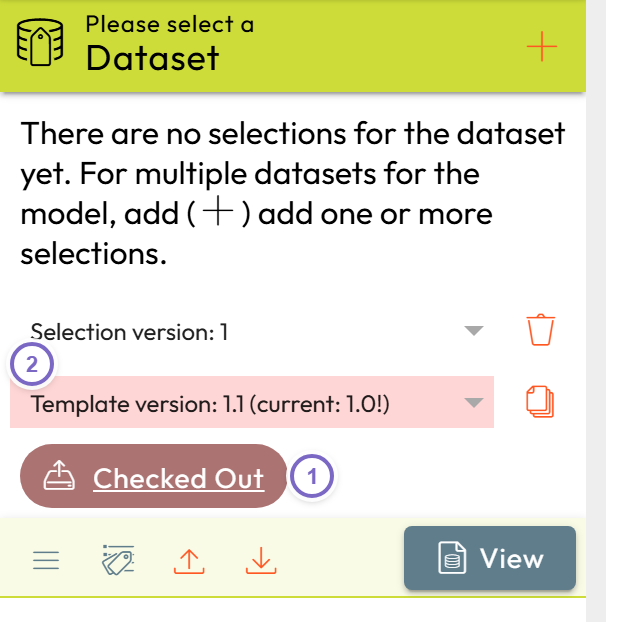
- 1 The current revision state — click it to open the revision actions (checkout / check in / publish …).
- 2 The checked-out template version.
Leaving Design mode shows users the latest published version. An unpublished newer
version (for example a checked-out 2.0) is not shown to users until it is published.
Revisions and locking
Publishing matters beyond visibility: a data label collection becomes locked once it is used by a section in a published template version. To change such a collection you must revise the depending model first. See data label collections — usage and locking.