Create a personal access token for the MCP
Purpose
A personal access token (PAT) is the credential an AI agent sends to the Sheet MCP on every call. You create it once in Nooxl Apps, copy it into the agent, and control what it may do through its scope.
When to use
- You want to connect an external MCP client (Claude, Langdock, Cursor, ...) to your apps.
- You want a scoped, revocable credential instead of sharing a login and password.
Prerequisites
- You are signed in through the Nooxl identity manager (a local login). Microsoft / Entra accounts cannot create personal access tokens.
- The Personal Access Tokens entry is visible in your user menu. It appears only when the installation has the experimental features enabled — ask your administrator if you do not see it.
Step by step
1. Open the Personal Access Tokens page
Open the user menu at the top right and choose Personal Access Tokens.
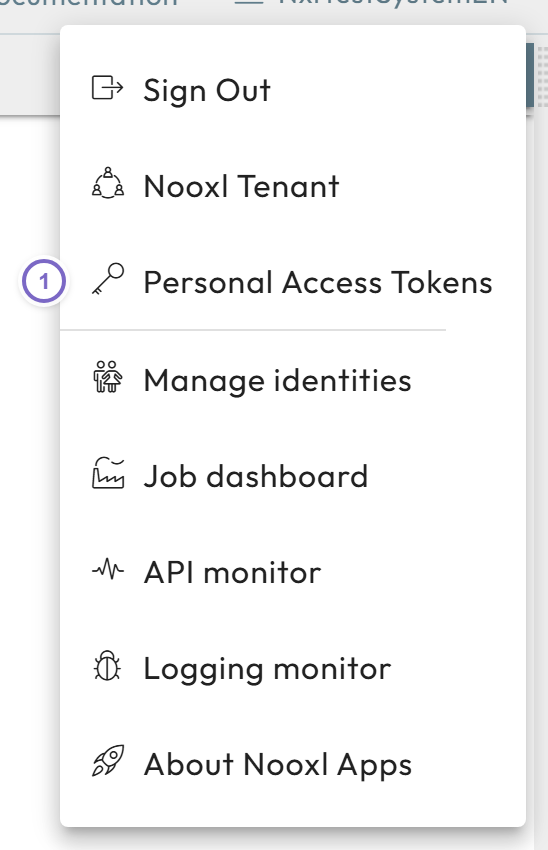
- 1 The Personal Access Tokens entry in the user menu.
The page lists your existing tokens.
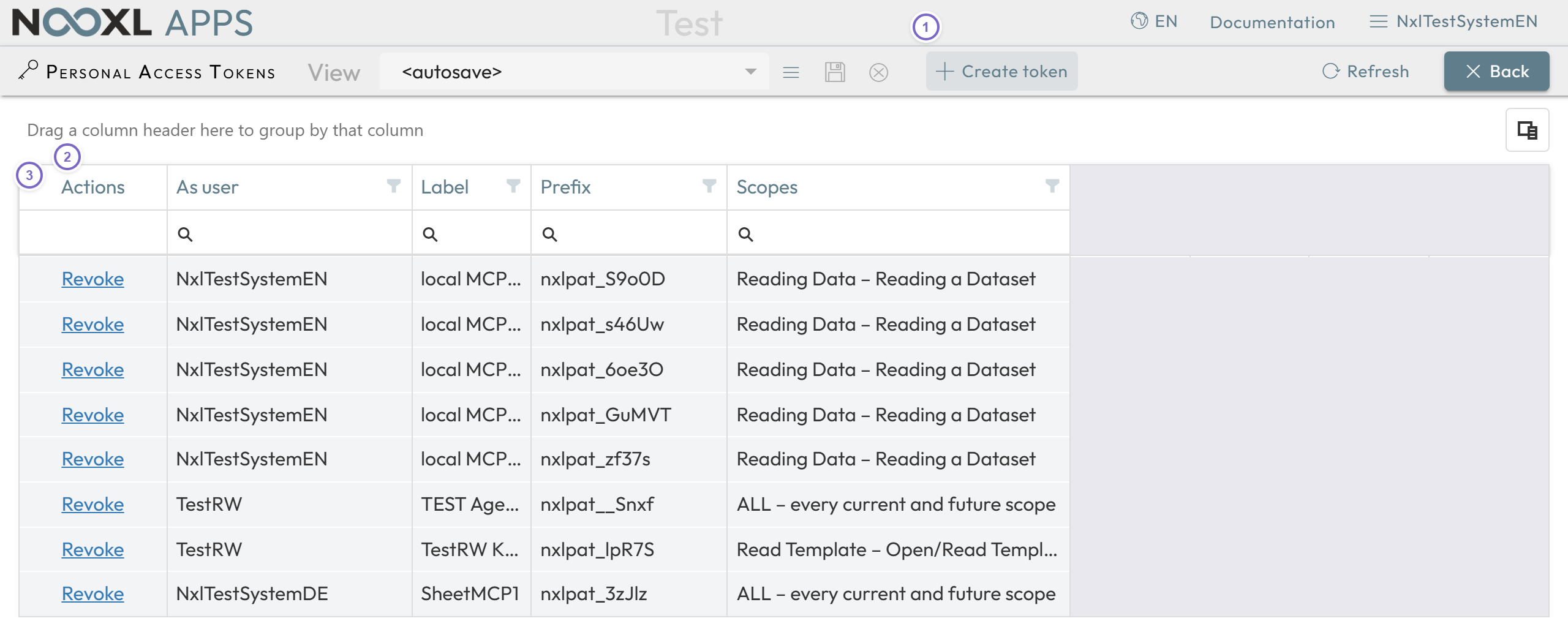
- 1 Create token opens the create dialog.
- 2 Each row shows the Label, Prefix, Scopes, and the created / expires / last-used dates.
- 3 Row actions: Revoke an active token, or Delete one that is already revoked or expired.
2. Fill in the create dialog
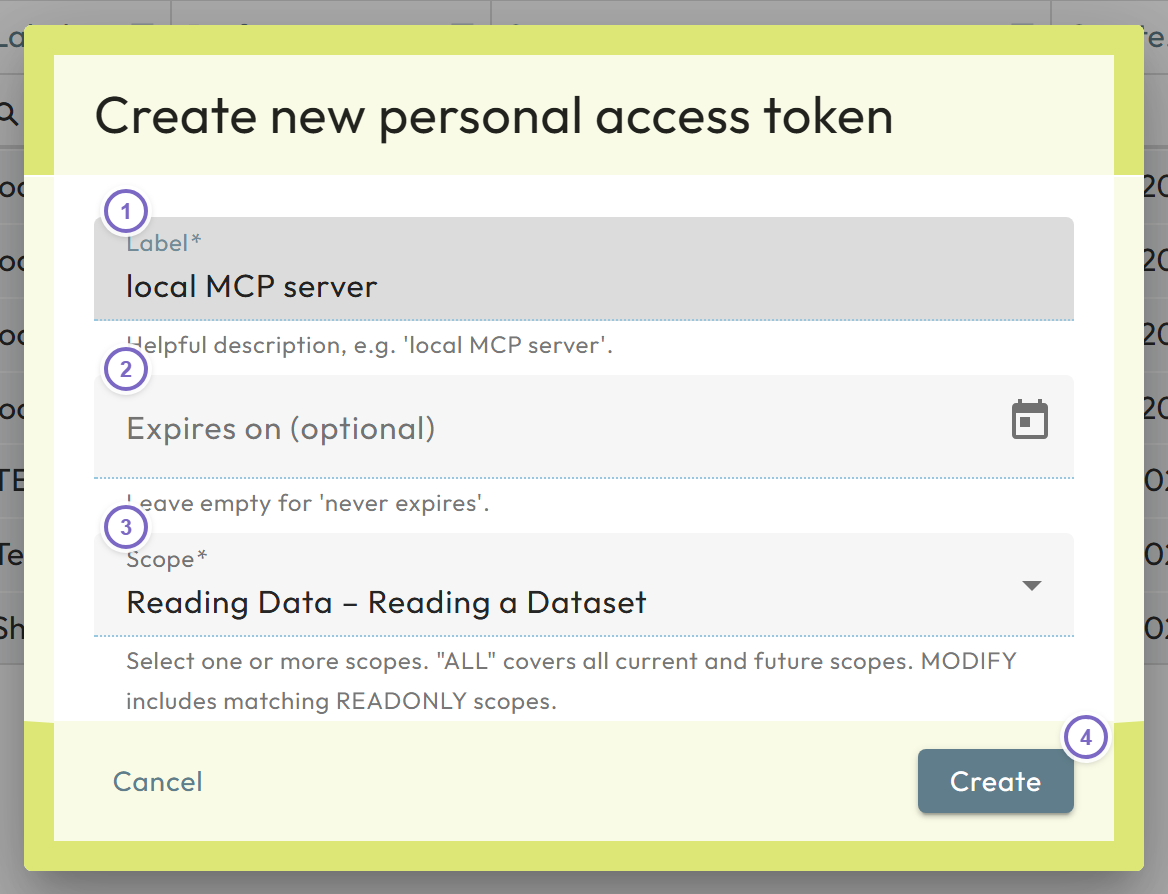
- 1 Label — a helpful description, for example local MCP server (up to 100 characters).
- 2 Expires on (optional) — leave empty for a token that never expires; otherwise the date must be in the future.
- 3 Scope — select one or more scopes (see below).
- 4 Create generates the token.
Choose the smallest scope the agent needs:
| Scope | Grants |
|---|---|
| ALL | Every current and future scope. |
| Read Template | Open and read models in design. |
| Change Template | Edit and publish models in design. |
| Reading Data | Read a dataset. |
| Data modify | Write input cells and save a dataset. |
A modify scope automatically includes the matching read scope. Scopes only narrow the rights of the login they run under — the login's platform permissions still apply.
System users additionally see a Token applies to (permissions) field. It lets them issue a token that runs under a service login instead of their own login. Setting up service logins is a system administration task and is not covered here.
3. Copy the token
After you create it, the token is shown once.
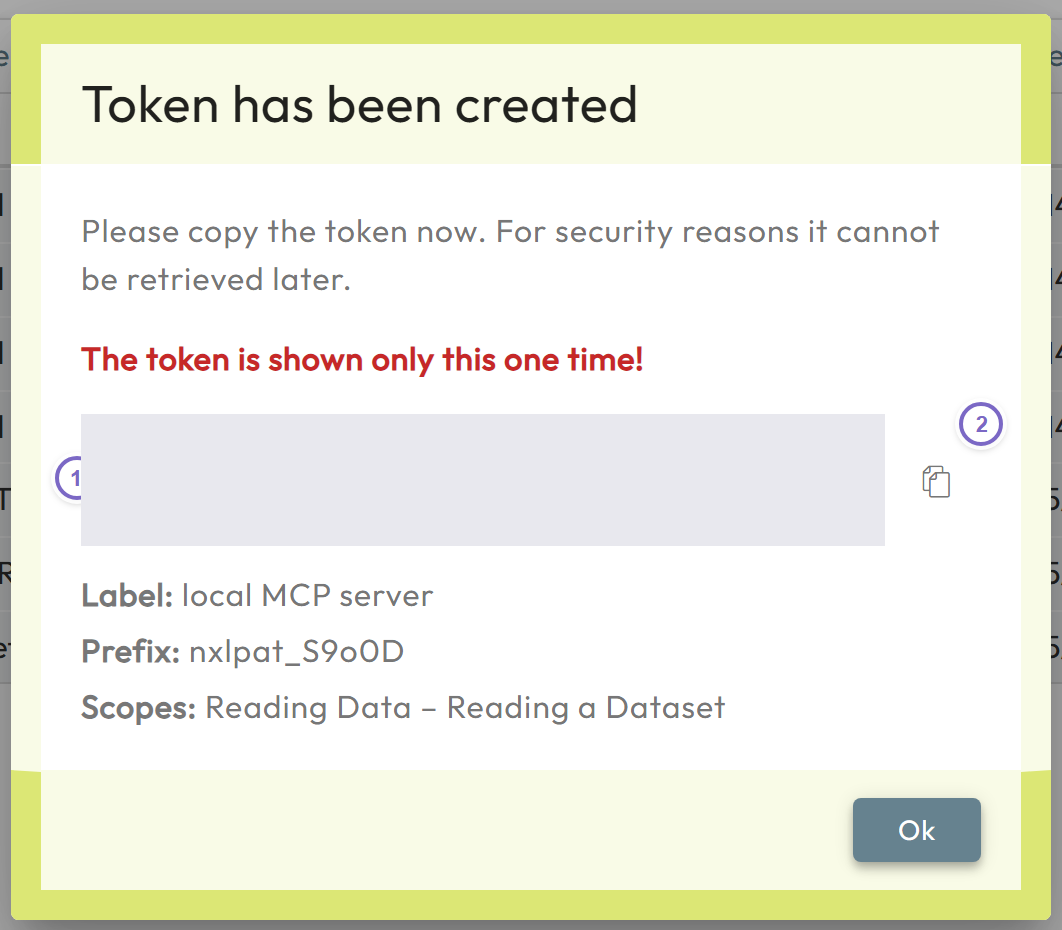
- 1 The token value, starting with
nxlpat_. - 2 Copy to clipboard.
The token is shown only this one time. For security reasons it cannot be retrieved later —
only its short prefix (nxlpat_...) stays visible in the list. If you lose it, revoke it
and create a new one.
Manage tokens
- Revoke an active token to make every call using it fail immediately.
- Delete removes a token that is already revoked or expired from the list.