App navigation
The navigation is the structure of menu items shown on the left of a Nooxl App. Each item typically points to a model, but items can also group other items. You design the navigation in Design mode.
Prerequisites
- A Nooxl App is open and Design mode is active ().
Create a navigation item
- In the left navigation, click the red plus () to create a new item.
- Give the item a name and choose its type (for example a model item).
- Save.
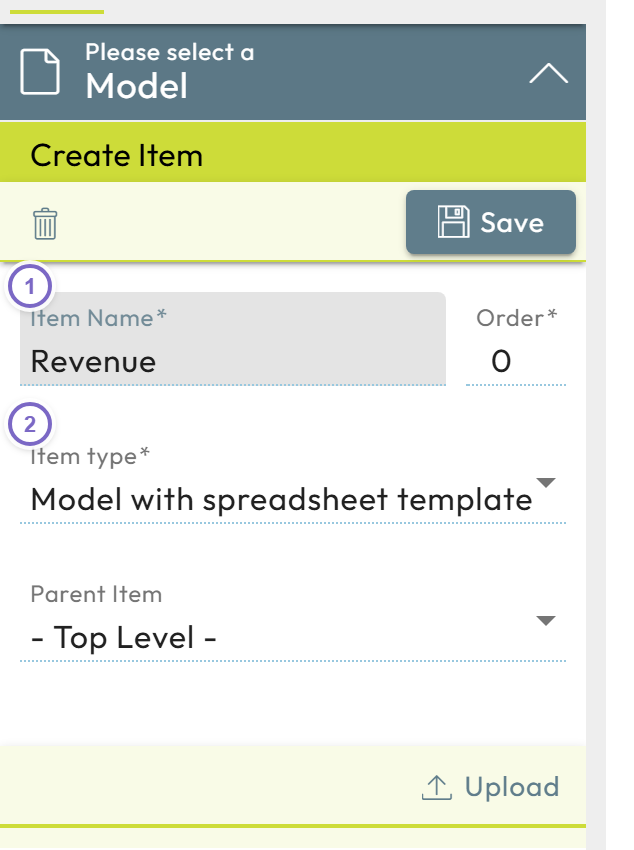
- 1 The red plus to create a new navigation item.
- 2 The item name and type.
Create a sub-item
Use Create new sub item on an existing item to nest entries beneath it. This lets you group related models under a common heading in the menu.
Order and edit
- Items with the same order are sorted alphabetically; change an item's order to move it in the menu.
- Use the edit button next to an item to rename it, change its icon, or delete it.
note
A navigation item that points to a model is also how users reach that model in Work mode. Hiding or reordering items only changes the menu — it does not change the model itself.