Design mode
Nooxl Apps has two modes:
- Work mode — the normal mode in which users view, edit, and save data.
- Design mode — the mode in which designers create and customize apps, models, data labels, sections, and permissions.
Almost every designer task in this guide begins with "enter Design mode".
Switch modes
Toggle Design mode with the pencil button () in the navigation. When Design mode is active, the pencil is highlighted and extra controls appear throughout the app — most importantly the red plus () to create new objects and the edit buttons next to existing objects.
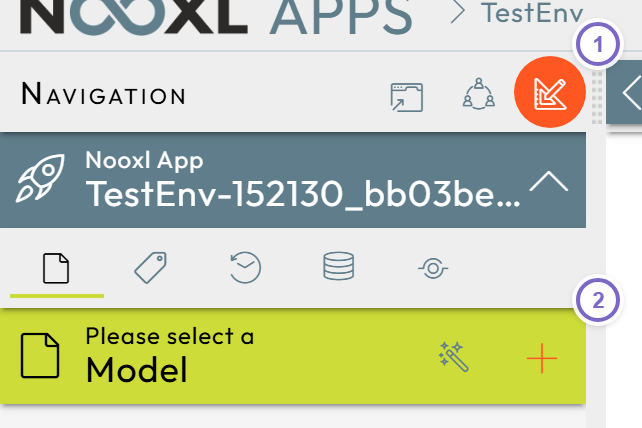
- 1 The pencil button that toggles Design mode.
- 2 The red plus and edit controls that appear only in Design mode.
What only designers can do
Creating and changing apps, uploading and configuring models, defining data labels and collections, adding sections, and managing permissions are all Design-mode actions and require the App designer permission.
Leaving Design mode returns the app to Work mode, where you and your users see the app exactly as end users do. Switch back often to verify your changes from the user's perspective.