Permissions
A permission grants a right to a user or group on an object (an app, model, dataset, data label, and more). You manage them on the Permissions tab of the Collaboration area. These are static permissions; for status-dependent rights see workflow permissions.
App vs. Global
The Permissions tab shows at least two scopes: your App and Global. Permissions granted at the Global level apply to all apps in the tenant — for example a global designer role.
Account-wide Global administration is mainly a system administration concern. As a designer you usually grant permissions at the App scope.
Assign a permission
- On the Permissions tab, enter Design mode ().
- Click the red plus ().
- Choose a user or group, choose the permission, and (where required) the object it applies to, then Save.
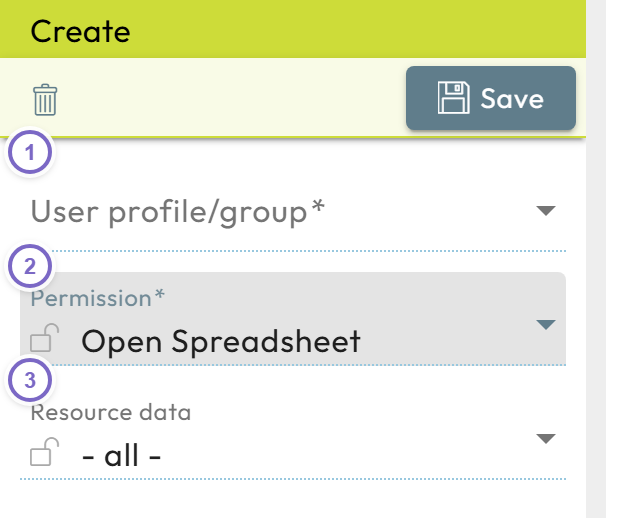
- 1 Choose the user or group.
- 2 Choose the permission.
- 3 Choose the object (if required), then save.
Use the edit button next to a permission to change or delete it.
Permission reference
Model (terms in parentheses are older labels)
| Permission | Description |
|---|---|
| Open model | See a model in the navigation and open it. |
| Save model | Save an open model (includes Open model). |
| Export model formula | Export an open model with its Excel formula logic. |
| Invite new external users | Invite new users via the invitation wizard and set their permissions. |
| Invite existing users | Authorize existing users for the model via the invitation wizard. |
Model-level permissions are not copied when a model is cloned — set them again for the new model.
Model tree
| Permission | Description |
|---|---|
| View folder/item | Like Open model but for folders; applies Open model to every model in the folder. |
Data label category (Catalog) and data label (Element)
| Permission | Description |
|---|---|
| Show data-label menu | View the Data and labels menu. |
| View category | View specific categories. |
| Create new data label in category | Create labels in a category (also needs Edit data label). |
| View data label | See all or specific labels (overridden when a collection has Grant permissions enabled). |
| Edit data label | Change labels (includes View data label). |
| Delete data label | Delete all or specific labels. |
App
| Permission | Description |
|---|---|
| Design the app | Perform any Design-mode (pencil) activity in the app. |
| Create new apps | Create apps in the tenant (best set at Global). |
| Use the app | Use an app's content — without it, no object permission inside the app works. |
Documentation (Notes)
| Permission | Description |
|---|---|
| View documentation | Read the notes of the app and its models. |
| Edit documentation | Create, change, and delete notes (includes View documentation). |
Dataset history (Data States) and cell storage data (Data Entries) have their own Show menu / View / Change / Delete permissions following the same pattern.