Permission groups
A permission group bundles several users so you can assign the same rights once, similar to a role in other applications. You manage groups on the Permission groups tab of the Collaboration area.
Prerequisites
- The Collaboration area is open and Design mode is active ().
Create, edit, delete
- On the Permission groups tab, enter Design mode.
- Click the red plus (), enter a group name, and Save.
- Use the edit button next to a group to rename it, or the trash icon to delete it.
Manage group membership
- Click the members icon next to the group.
- Tick the users that should belong to the group.
- Click the up arrow to leave the assignment view.
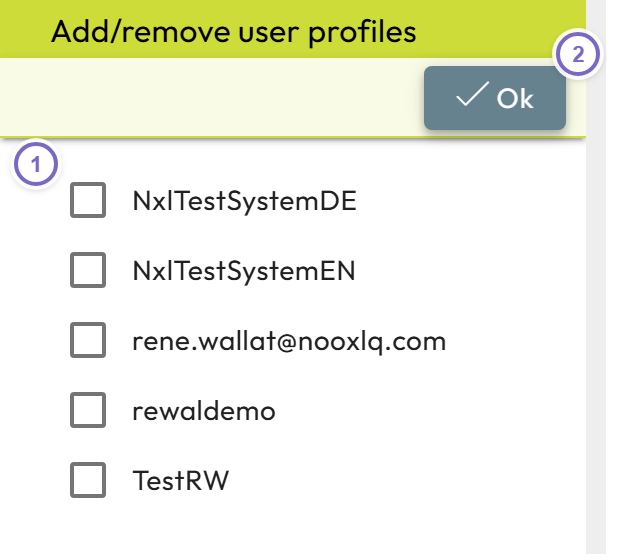
- 1 Tick the users that belong to the group.
- 2 Confirm with Ok.
note
Membership changes take effect immediately — there is no separate save button.