Data labels
A data label belongs to a data label category. You build collections of labels from one category and use those collections to determine a dataset or to describe data in a cell storage section. A label can be part of as many collections as you want.
Prerequisites
- A Nooxl App is open.
- At least one data label category exists.
Create a data label
- In the left navigation, open Data and labels.
- Click the category you want to add a label to.
- Enter Design mode () and click the plus to open the create dialog.
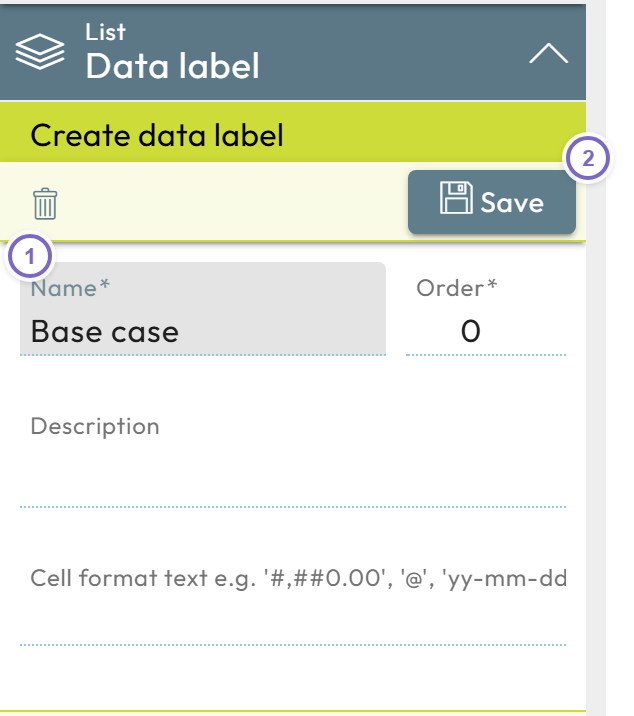
- 1 Enter at least a Name.
- 2 Click Save to create the label.
You can also create labels through a modification section. See cell action section.
Edit a data label
- Open Data and labels and click the category.
- Enter Design mode and click Edit data label next to the label.
- Change the fields and save.
Delete a data label
- Open Data and labels and click the category.
- Enter Design mode and click Edit data label next to the label.
- Click the trash can icon and confirm.
You can also select several labels and delete them together.
Deleting a label also deletes all data stored using it across all models. Make sure the label is no longer used anywhere first.
Properties
| Field | Meaning |
|---|---|
| Name | The name of the data label. |
| Description | Optional free-text description. |
| Order | Position of the label within the category and in collections. Labels with the same order are sorted alphabetically. |
| Tags | Optional tags you can reference in models. Tags must not contain spaces — use underscores or camelCase. |
| Cell format | Optional cell format associated with the label. |
Dependent labels
When a category has a primary category, its labels can be dependent: they only appear together with a specific label of the primary category. The classic example is departments and employees, where every employee belongs to one department.
| Department | Employee |
|---|---|
| Sales | Susi, Stella |
| Marketing | Bob, Anthony, Phillis |
| Management | Bill Boss |
- Create the primary category (Department) and a dependent category (Employee) with Department set as Primary category and Allow only dependent secondary labels ticked.
- Create the department labels in the Department category.
- Create a model that uses both categories as dataset selections, and on the Employee selector enable Dependent data labels can be created (with primary category).
- Leave Design mode, select a department, open the employee selector's context menu, and choose Create new data label.
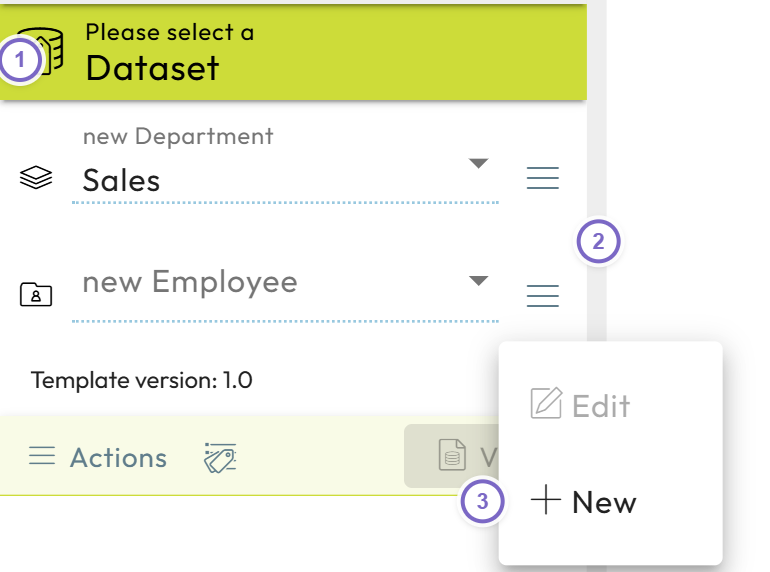
- 1 Select the primary label (the department).
- 2 Open the dependent selector's context menu.
- 3 Choose Create new data label and save.
The new label is only available when its primary label is selected.