Data label collections
A data label collection is a subset of a data label category. It can contain all labels of the category, several of them, or just one. A label can belong to any number of collections.
Collections serve two purposes in your app:
- They determine the datasets of a model (see dataset selections).
- They determine which labels are used to store data in advanced cell storage sections.
A collection always contains labels of a single category.
Prerequisites
- A Nooxl App is open and Design mode is active ().
- The target data label category has at least one label.
Create a collection
- Open Data and labels and enter Design mode.
- Next to the category, click the collections icon to list its collections.
- Click the red plus () to open the create dialog.
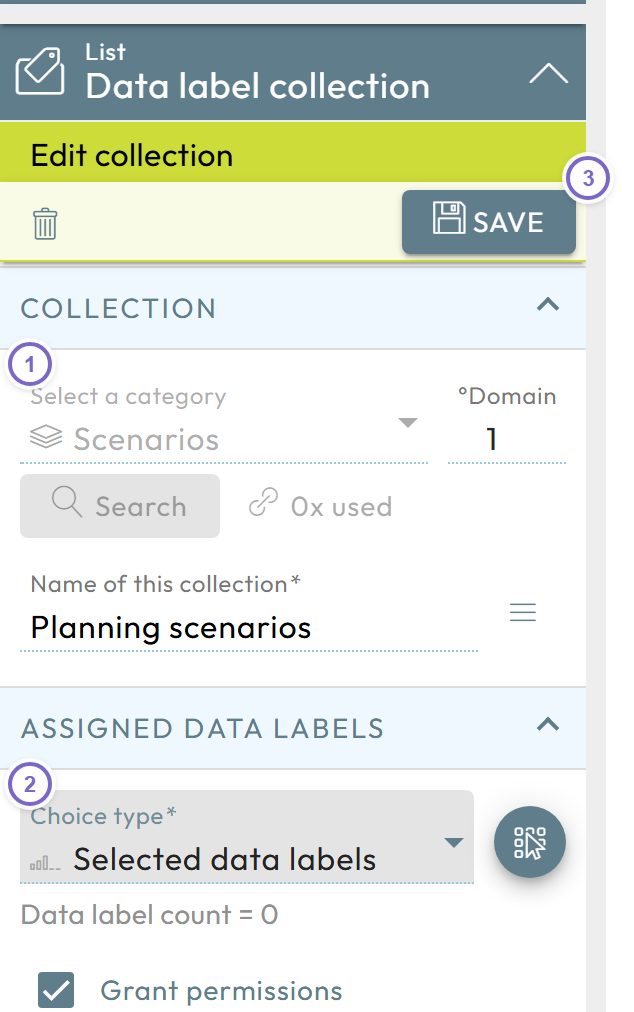
- 1 Select the category (the dialog prefills the name with the category name).
- 2 Choose the selection type (see below) and add the labels.
- 3 Click Save.
Selection type
| Type | Behavior |
|---|---|
| All labels | Always contains every label of the category, including labels created later. |
| One label | Exactly one label; the collection is renamed automatically to that label. |
| Selected labels | A chosen subset; you can sort the labels by different methods (default is their order/rank). |
Grant permissions
If Grant permissions is enabled, users who can view a model that uses the collection automatically get access to all included labels. If it is disabled, you must grant label access explicitly in Collaboration.
Edit or delete a collection
- Open Data and labels → category → collections icon.
- Click Edit data label collection to change it, or open it and use the trash can icon to delete it (only possible when it is not locked — see below).
Use Clean up on the collection list to delete all unused collections of a category at once.
Usage and locking
A collection tracks where it is used. In the collection dialog you can see the usage count and open a usage dialog that lists the models and cell storage sections that reference it.
Locking behavior:
- Using a collection only as a dataset selection does not lock it — it stays fully editable.
- A collection becomes locked once it is used by a section (markup) in a published template version. While locked, existing labels cannot be removed (you can still add labels).
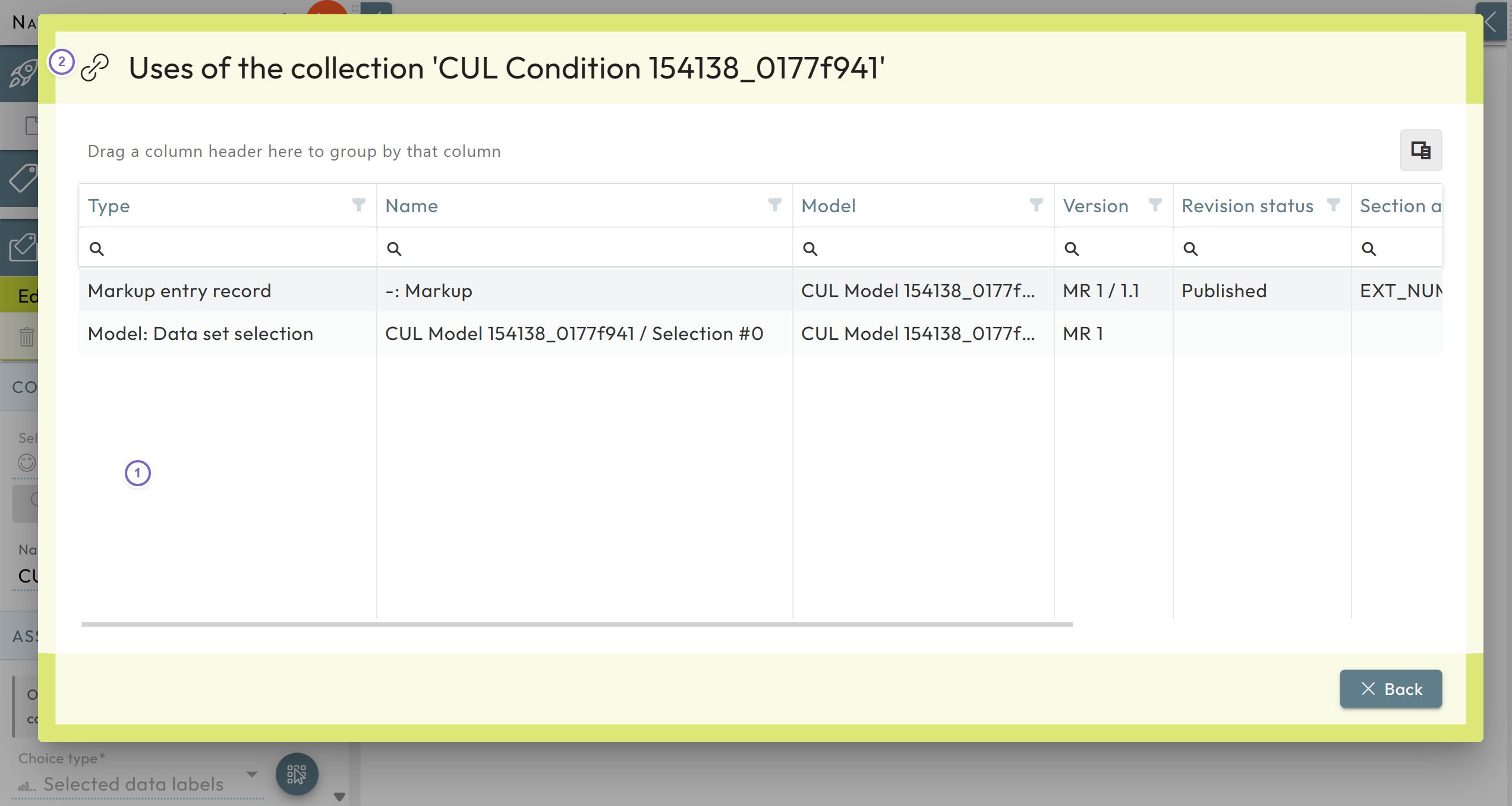
- 1 The usage count and lock indicator.
- 2 The usage dialog lists the model and the storage section.
To change a locked collection's labels, the depending published template version must be revised first. See revisions.