Cell storage section
A cell storage section permanently stores the contents of one or more cells in the database and reads them back. The data can be numbers, text, Excel formulas, or even documents and images. It is the most-used section type, because it is what turns a spreadsheet into a data-backed model.
Creating a cell storage combines two things: it creates a section anchor and a cell storage inside it, both with the name you enter.
Create a cell storage
- In the model's template Design mode, select the cell(s) whose content you want to store.
- Click + Cell Storage.
- Enter a unique name, choose what to store, and click Create.
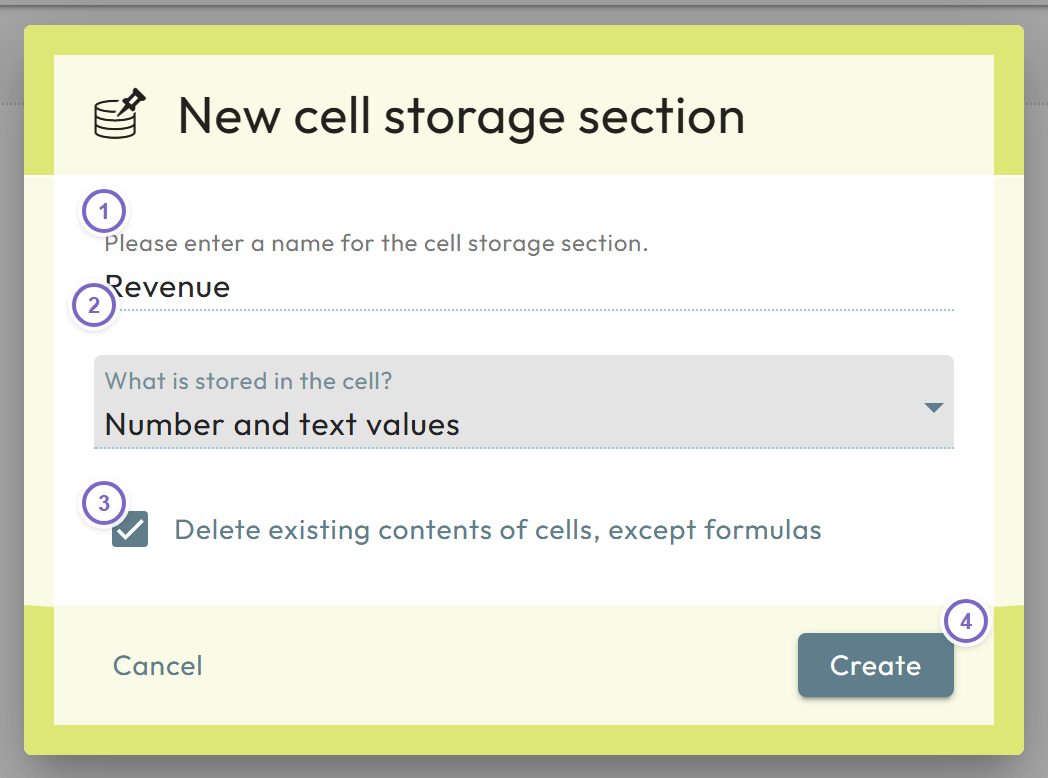
- 1 Enter a unique name.
- 2 Choose what to store: number and text, numbers, text, or document.
- 3 Optionally clear any sample values from the template cells.
- 4 Click Create.
New cell storage cells are configured to read and write their content and receive the input-cell color. Edit a cell storage later from the Tools area (the database-mark icon, then the pencil).
Simple vs. advanced mode
By default a cell storage has one output value per cell and uses auto-generated coordinates (horizontal → and vertical ↓) to identify cells. Turning on Advanced mode unlocks:
- Dimensions — use data label collections for the horizontal/vertical axes so cells are identified by labels instead of coordinates. You can mix several collections in one dimension (a cross product is built). This lets another model read just part of a storage.
- Multiple values — add more than one Values entry, for example to output label names next to the actual values. Values are processed in alphabetical order of the entry names, so prefix with numbers to control order.
Changing the dimensions of an existing cell storage means previously stored data can no longer be addressed. Export all datasets before such a change.
Dimension settings (advanced mode)
| Setting | Purpose |
|---|---|
| Expanse | Whether to add cells or whole rows/columns per label: Off, Insert cells, or Insert complete lines. |
| Copy | Whether inserted rows/cells copy the original cell's content and formatting (for example to carry Excel formulas) — Copy cells with size of dataset X. |
| Dataset | How the size is determined: Markup (variable, follows the marked range), Count (a fixed size), or Catalog (size follows a collection). |
| Length | The fixed size, when Dataset = Count. |
| Catalog items | The collection, when Dataset = Catalog. |
| After | Whether to leave an empty cell after each label. |
Values
Each Values entry defines how its data is handled:
Cell entry name — a unique-per-model name. You will meet it again in the Tools list, in the Cell Storage Explorer, and when reading the data from another model. Use self-explanatory names.
Content type
| Type | Meaning |
|---|---|
| VALUES | Default — store and/or read the cell's data. |
| RECORD | Output details of the section's dimensions (advanced mode). |
| SELECTION | Output a selection of the current dataset. |
| DOC | Store documents (images, files) instead of values. |
| DETAILS | Jump to another dataset in any model (see jump to a dataset). |
Content source — for VALUES, choose INTERNAL (store in this model) or EXTERNAL (read from another model). External reads are READ by default, but can be READ_WRITE or WRITE; Nooxl prevents two users editing the same dataset in parallel.
Property — how content is stored. For values:
| Property | Stores |
|---|---|
| DATA_TEXT | Text only. |
| DATA_NUMBER | Numbers only (non-numbers are not saved). |
| DATA_TEXT_NUMBER | Both text and number (when numeric). |
| DATA_FORMULA[_TEXT][_NUMBER] | The Excel formula, optionally with the resulting text and/or number. |
For document storage you choose DOC_* properties (DOC_DATA, DOC_FILE_NAME,
DOC_CMD_UPLOAD, DOC_CMD_DOWNLOAD, DOC_CMD_CLEAR, …); for dimension records you
choose ELEMENT_NAME, ELEMENT_ID, CONDITION_NAME, VECTOR_INDEX, and similar.
When reading externally, pick a property that was actually stored — reading
DATA_NUMBER fails if only DATA_TEXT was saved. Limiting what you store improves
performance.
Storage
| Storage | Behavior |
|---|---|
| READ | Only read from the database (use for external, read-only content). |
| WRITE | Only write (use to save calculated formula results). |
| READ_WRITE | Read and write (use for manual user input). |
Default value — for VALUES + INTERNAL, a value used when the dataset has no
stored value yet.
Disabled — deactivate a cell storage while you finish configuring it elsewhere, to avoid errors for users.
Jump to a dataset
A DETAILS value lets a cell open another dataset in any model — handy for a list that
links to a detail model. Configure the target model name (DETAIL_MATRIXNAME) and the
target cell (DETAIL_CELLNAME).