Image viewer section
An image viewer section shows pictures and charts that live in the model's spreadsheet inside the app.
note
In older documentation and the API this is a document viewer markup (MarkupDocViewer). Nooxl Apps also shows charts and pictures automatically when they sit in cells that are part of a tab page — see Charts and pictures for supported types and tips.
When to use
Use an image viewer section when you want explicit control over where a picture or chart appears, rather than relying on the automatic placement of charts that are already inside a tab page.
Step by step
- In the model's template Design mode, select the cells where the image should appear.
- Add an image viewer section to the section anchor — or let the cell storage dialog create it for you: with a document storage restricted to image files, the dialog offers to add the picture viewer directly.
- Point it at the cell storage that holds the document and save.
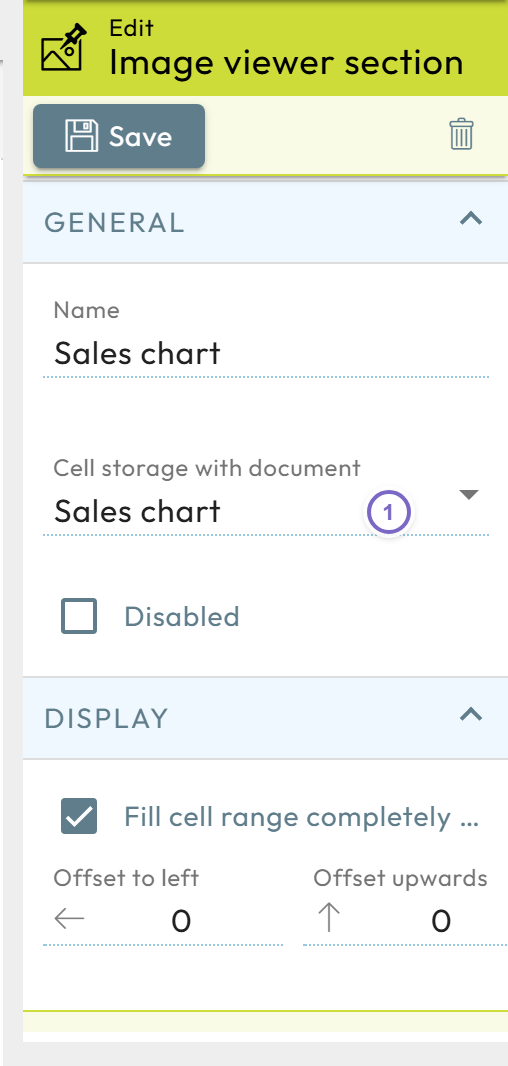
- 1 Choose the cell storage with document that holds the picture or chart to display.