Data label categories
A data label category is a collection of all similar data labels. You can create as many categories as you need; each data label belongs to exactly one category. Categories are used for dataset selections and to describe the content of cell storage sections.
Prerequisites
- A Nooxl App is open.
- Design mode is active ().
Create a category
- In the left navigation, open Data and labels.
- Enter Design mode ().
- Click the red plus () to open the create dialog.
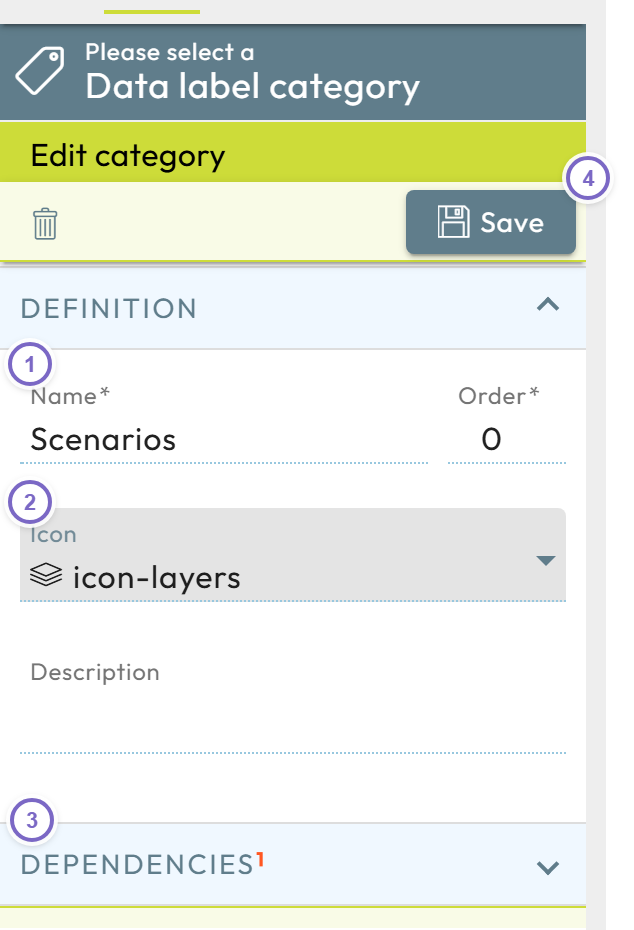
- 1 Enter at least a Name.
- 2 Select an Icon.
- 3 Optional: Set the Dependencies from other categories.
- 4 Click Save to create the category.
See Properties for the meaning of every field.
Edit a category
- Open Data and labels and enter Design mode.
- Click Edit category next to the category.
- Change the fields and save. This is the same dialog as when creating a category.
Delete a category
- Open Data and labels and enter Design mode.
- Click Edit category next to the category you want to remove.
- Click the trash can icon and confirm.
Deleting a category also deletes all data stored using its labels. Depending on the amount of data, this can take a while.
Properties
| Field | Meaning |
|---|---|
| Name | Display name of the category, shown together with the icon throughout the app (including model selectors that use a collection of the category). |
| Icon | An icon from the icon collection, shown next to the name. |
| Order | Position of the category in Data and labels. Categories with the same order are sorted alphabetically. |
| Description | Free-text description of the category and its labels. |
| Dependencies | Optional. See Dependencies. |
Dependencies
By default, the labels of a category are independent: the category can be used on its own for dataset selections and to store data. Sometimes you want certain labels to appear only together with a specific label of another category — for example employees that belong to a department. This is what dependencies are for.
- In the category dialog, open Dependencies and click the plus.
- Choose another category as the Primary category.
- To allow only dependent labels, tick Allow only dependent secondary labels; otherwise both independent and dependent labels can be created.
- Save.
A category can depend on more than one primary category. For a full walk-through, see dependent labels.
Dependent labels are only created in the context of a model's dataset selection, because the primary labels has to be selected first.