Upload and update a model
A model is created by uploading an Excel spreadsheet. Nooxl Apps keeps full Excel compatibility and versions every upload automatically (see template versioning).
Prerequisites
- A Nooxl App is open and Design mode is active ().
- You have an
.xlsxspreadsheet to upload.
Create a model
- In the app, enter Design mode ().
- Click the red plus () to create a new model entry.
- Enter a name and click Save.
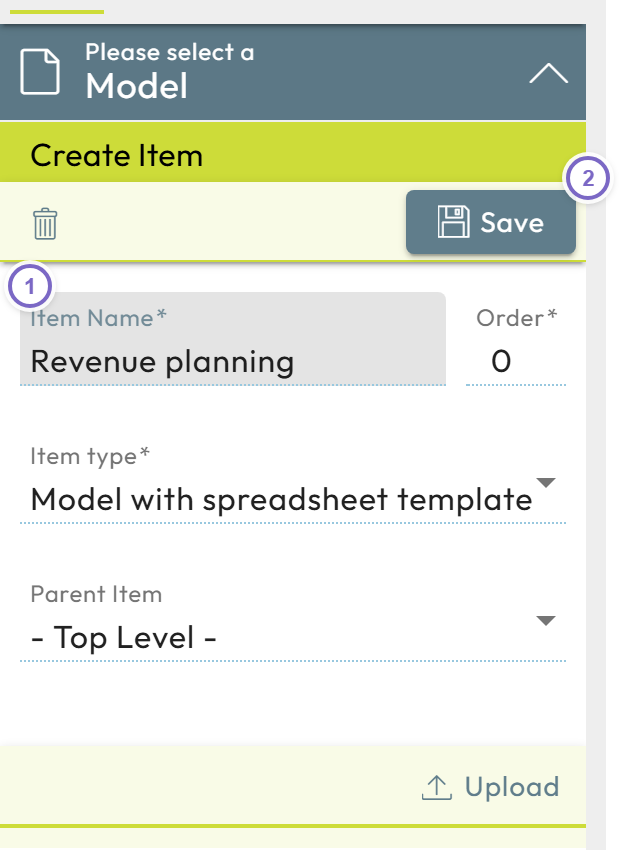
- 1 Enter the model name.
- 2 Click Save to create the entry.
Upload the spreadsheet
- Next to the new entry, open the context menu (the three lines) and choose Edit.
- Click Upload, then Upload file and select your
.xlsx. - Enter a reason for the change and confirm the upload.
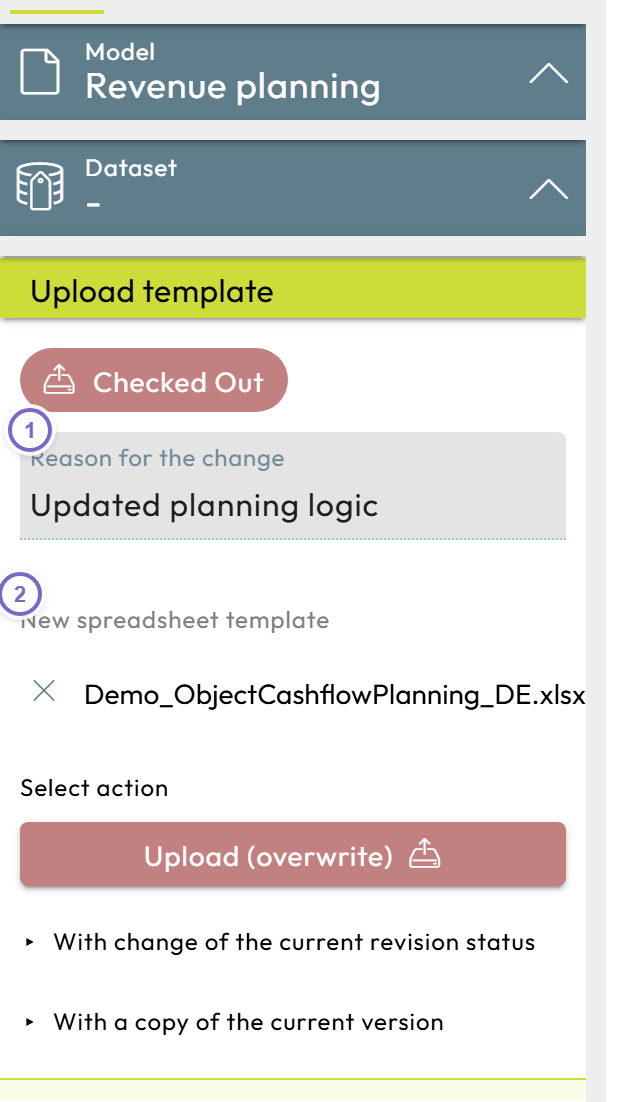
- 1 Enter a reason for the change.
- 2 Start the upload.
Leave Design mode to test the model.
Instead of building sections by hand, you can let the Nooxl Transformer detect input cells and create cell storage sections automatically right after upload.
Update to a new version
Uploading another spreadsheet to an existing model creates a new template version. By default a new minor version is created within the current major version. When uploading you can choose:
- No version change — overwrite without bumping the version,
- Minor version change — a new minor version inside the current major version,
- Major version change — a new major version.
See template versioning for how versions interact with datasets, and revisions for the checkout/check-in/publish workflow.
Changes you make to sections in Design mode do not create a new template version. To create a new version you must download the spreadsheet and upload it again.