Dataset selections
A dataset selection assigns one or more data label collections to a model. The combination of one label from each selection forms a dataset, and each dataset stores its own values. A model can also have no selection at all, in which case it has exactly one dataset.
Prerequisites
- A model exists in your Nooxl App.
- At least one data label category with a collection exists.
Add a selection to a model
- Next to the model, click More to open its dataset selection.
- Enter Design mode ().
- Click the red plus () to add a selection.
- Confirm the warning that existing datasets can no longer be assigned (a new selection release is created).
- Choose the category/collection, keep or change the name, pick the selection type (for example All labels), and Save.
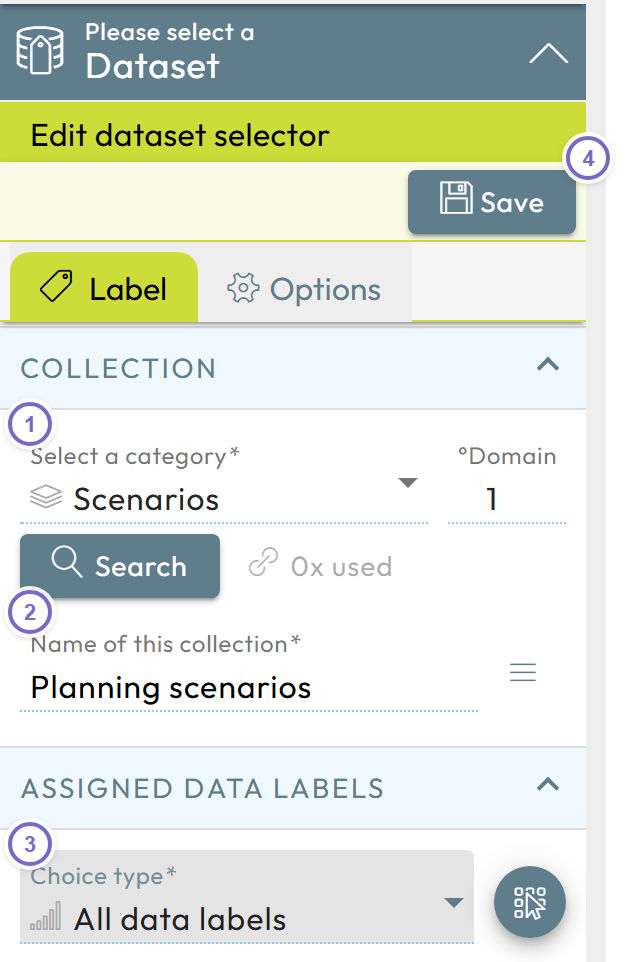
- 1 Choose the data label category/collection.
- 2 Keep or edit the selection name.
- 3 Choose the selection type.
- 4 Save.
Leave Design mode. The selection now appears in the dataset selection; the View button stays grayed out until a label is chosen for every selection.
Selection options
When a collection is used as a dataset selection, an Options tab exposes:
| Option | Effect |
|---|---|
| Extra selector, without dataset versioning | The selection does not multiply the datasets (it is "additional"). |
| Optional | Users need not pick a label of this selection. |
| Remember selection for dataset | Stores the chosen label with the dataset. |
| Hidden | Hides the selection from users (useful for one-label selections). |
| Prefill with first data label | Uses the first label as the default. |
| ALL visible when copying/calculating data | Offers an "All" checkbox when recalculating or copying datasets. |
| Data label can be created (independent) | Users may create independent labels from the selector's context menu. |
| Dependent data labels can be created (with primary category) | Users may create dependent labels. |
Work with datasets
From the dataset selection, users can:
- Select a dataset — pick a label for each selection and click View.
- List datasets — open the list of all existing datasets (configurable columns, grouping by drag-and-drop, search, saved column views, and selection-mode deletion).
- Open the actions menu for copy data, recalculation, import via template, and mass export.
This is the default behavior. A tenant can be configured to swap the two primary actions, in which case More is shown on the right instead of List.
Copy data from another dataset
Copy values from a source dataset into a target dataset — handy when starting a new planning round from the last one. Options control whether existing target data is overwritten and whether only filled source cells are copied. The copy runs in the background on the Nooxl servers.
Recalculation
Recalculate datasets after you upload a model with changed Excel logic, or after connecting new cell storage whose values feed other models. Mark which labels to include and start the recalculation; it also runs in the background.